
Stella Sora Mac Guide: How to Play and Keep Your Save
Explore Stella Sora mac options, install the Android version with BlueStacks Air, and learn how Steam support and account linking affect your progress.
Jump to
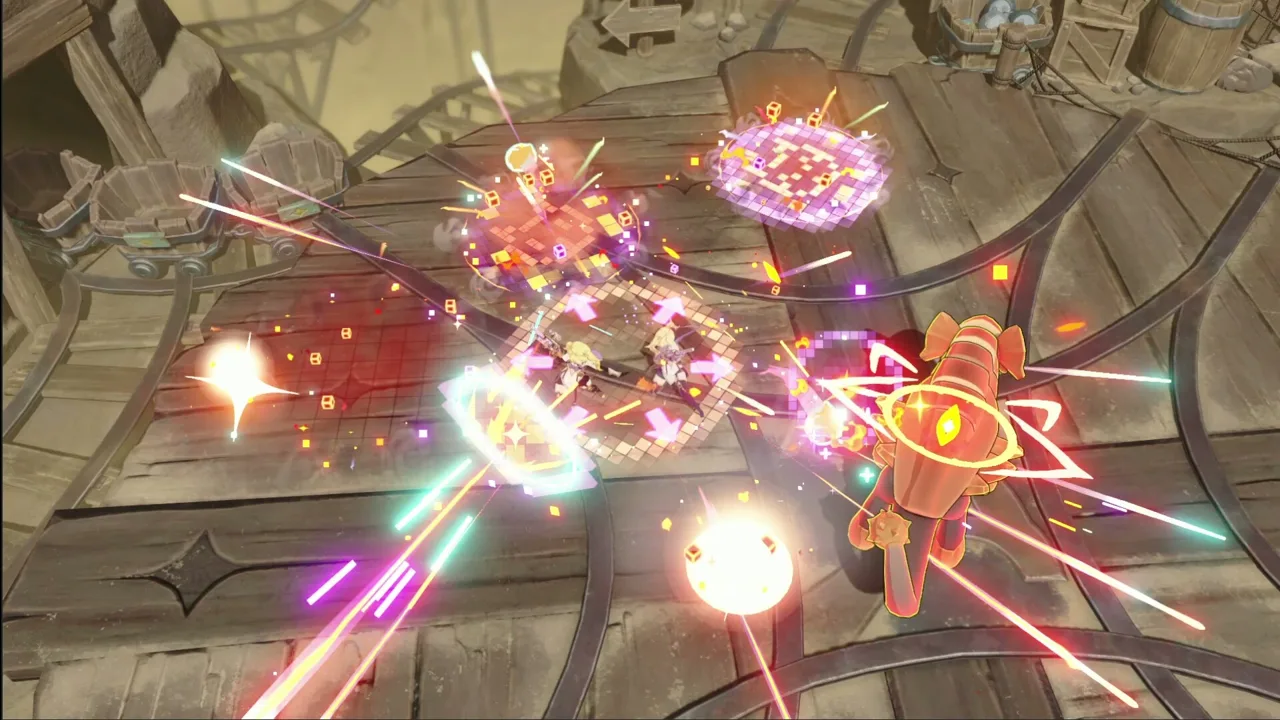
Can You Play Stella Sora on Mac?
Stella Sora Mac players can take the Android-emulator route through BlueStacks Air, while the Steam edition supports Windows. That distinction matters when you want to explore Nova on your computer and keep the Trekker squad you already built. This Stella Sora Mac guide walks you through installation, platform requirements, and the account settings that carry your progress between supported versions.
The key distinction is the version you are running. BlueStacks Air runs the Android game on your Mac; it does not turn the Windows Steam edition into a macOS application. Steam itself being available for Mac does not change the game’s operating-system requirements.
| Version or access method | Platform details | Account access |
|---|---|---|
| Steam edition | Windows; macOS and Linux support are disabled | Email, Google, Apple, and Steam login |
| Android through BlueStacks Air | Mac installation route using an Android emulator | Sign into Google Play to install the Android game |
| iPhone app | Requires iOS 13.0.0 or later | Email, Google, Apple, or guest login |
| iPad app | Requires iPadOS 13.0.0 or later | Email, Google, Apple, or guest login |
For a Stella Sora Mac setup, focus on the emulator instructions below. If you also have access to a Windows computer, the Steam edition offers another way to continue the same Global account.
Keep your Google Play sign-in and your Stella Sora login separate in your mind. The first gets you into the Android storefront. The second determines which game account and progress you open.
How to Install Stella Sora on Mac With BlueStacks Air
BlueStacks Air provides a Mac installation process using a package installer, followed by Google Play access. You download the emulator, install it, sign in, and then download Stella Sora inside its Android environment.
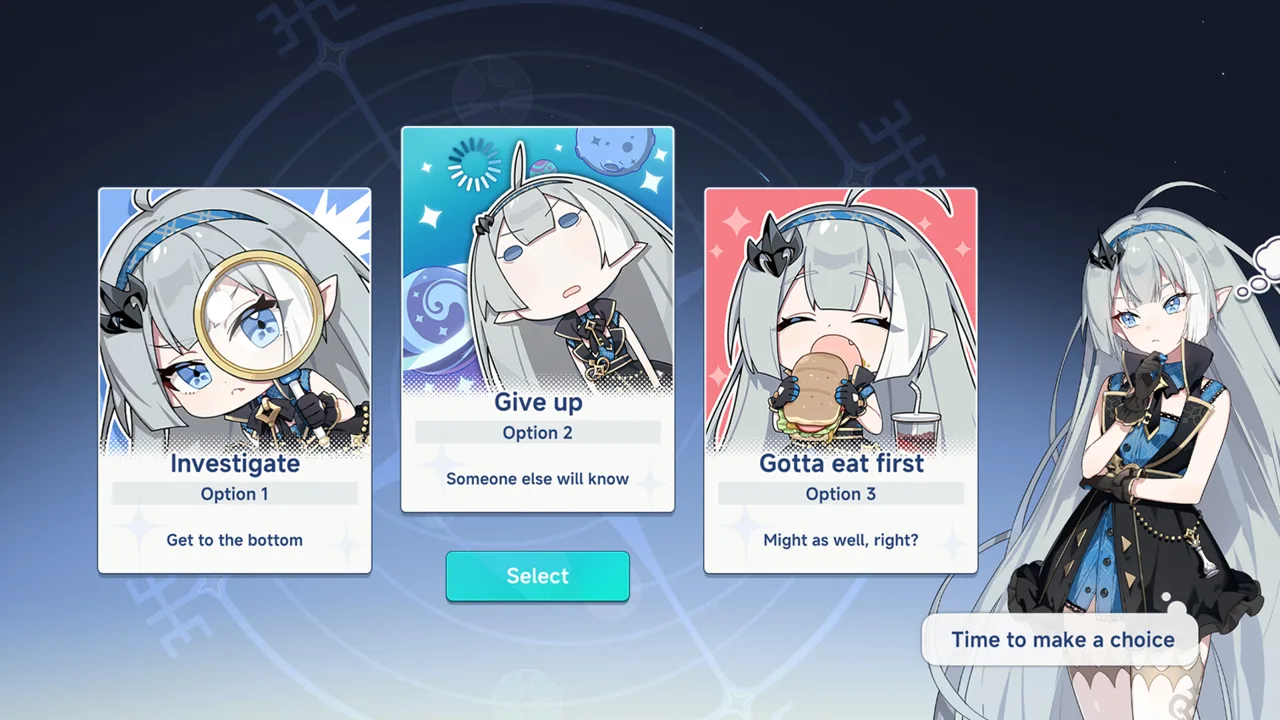 Image: Steam / YOSTAR HONG KONG LIMITED
Use this order for your Stella Sora Mac installation:
| Step | What to do |
|---|---|
| Download the installer | Get the BlueStacks Air installer for Mac |
| Install BlueStacks Air | Open BlueStacksInstaller.pkg and follow the installation wizard |
| Open the emulator | Launch BlueStacks Air from Applications or Launchpad |
| Access Google Play | Sign in with your Google account |
| Install the game | Search Google Play for Stella Sora and install it |
| Start playing | Launch Stella Sora inside BlueStacks Air |
You can also open the Stella Sora Google Play page to identify the Android game before installing it through the emulator.
Choose your game login before starting
If you already play on another device, check how that account is linked before opening the game on your Mac. An email login and a Google login are separate choices on the game’s login screen, even when you associate both with the same email address.
Use the login method attached to your existing progress. For a guest account, link it on the device where you currently play before moving to another installation.
The account menu path is:
Menu → Settings → Account → User Center → Go
From there, check your linked account information. This preparation keeps the installation process focused: get the Android game running, then sign into the account you intend to continue.
Keep the Android and Steam routes distinct
Inside BlueStacks Air, you are playing the Android version. Steam Wallet purchasing belongs to the Steam edition, and Steam account login is not available in the Google Play version.
If you created your account through Steam, bind an email address before trying to use that progress in the Android game. The account section below covers that process.
Steam Support and Windows System Requirements
The Stella Sora Mac question often comes up alongside the Steam release. The Steam edition has an October 19, 2026 release date, but its platform support remains Windows only. Its macOS and Linux platform flags are disabled.
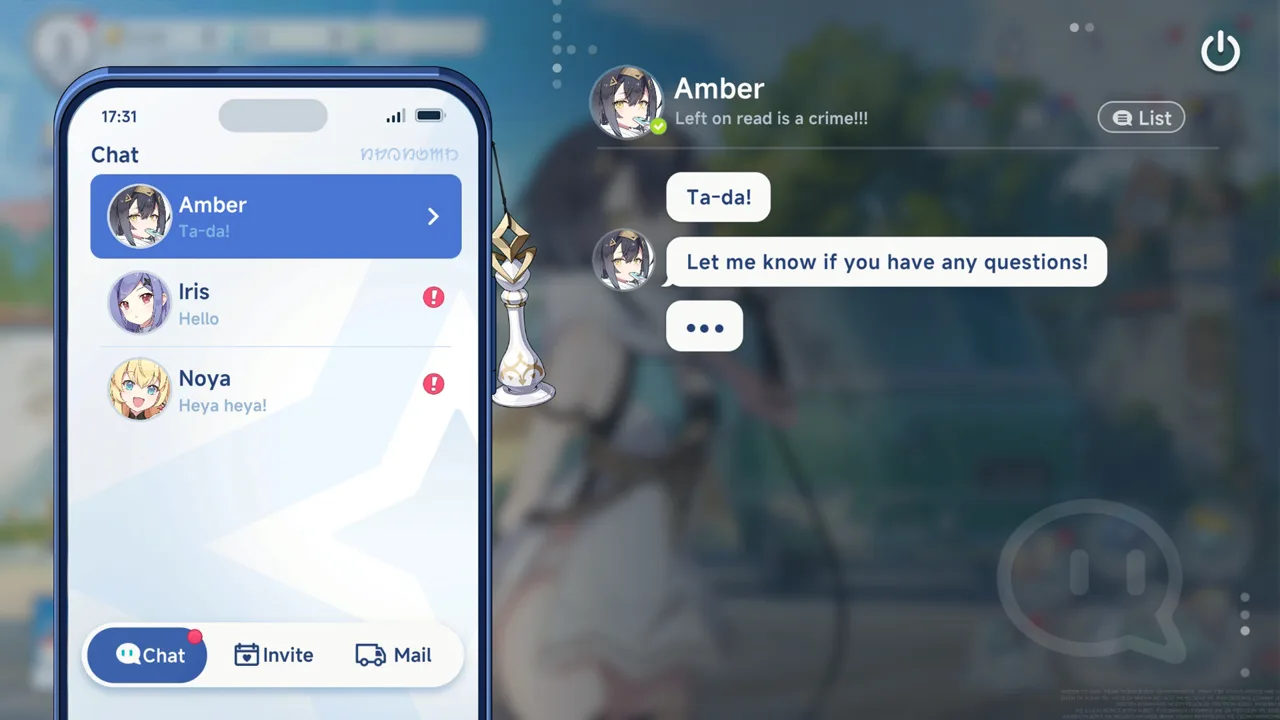 Image: Steam / YOSTAR HONG KONG LIMITED
That means a Mac Steam installation does not give you a native Stella Sora download for macOS. Use the Android-emulator route for Mac play, or use the Steam edition on a computer that meets its Windows requirements.
These are the Windows specifications:
| Component | Minimum | Recommended |
|---|---|---|
| Operating system | Windows 10 or Windows 11, 64-bit | Windows 10 or Windows 11, 64-bit |
| Processor | Intel Core i3 | Intel Core i5 |
| Memory | 8 GB RAM | 16 GB RAM |
| Graphics | NVIDIA GeForce GTX 750 or above | NVIDIA GeForce GTX 1060 or above |
| DirectX | Version 11 | Version 11 |
| Available storage | 20 GB | 20 GB |
These requirements apply to the Windows game. They are not a hardware checklist for BlueStacks Air, and the 20 GB storage requirement should not be used as an emulator installation estimate.
Visit the Stella Sora Steam page if you plan to play on Windows alongside your Mac setup.
What changes when you use Steam?
The Steam version supports existing email, Google, and Apple logins, plus Steam account login. Game content, events, and updates are shared across the supported Stella Sora platforms.
Purchases work differently: in-game payments within the Steam edition use Steam Wallet. Item prices are the same across platforms.
Choose your version around the device you are using and the account you already have. You do not need to abandon an existing Global account to start playing through Steam.
How to Keep Your Progress Across Mac, Mobile, and Steam
Your Stella Sora Mac setup runs the Android version through the emulator, so account linking is central to continuing your progress. Global account data can synchronize across Android, iOS, Steam, and the PC client through supported linked login methods.
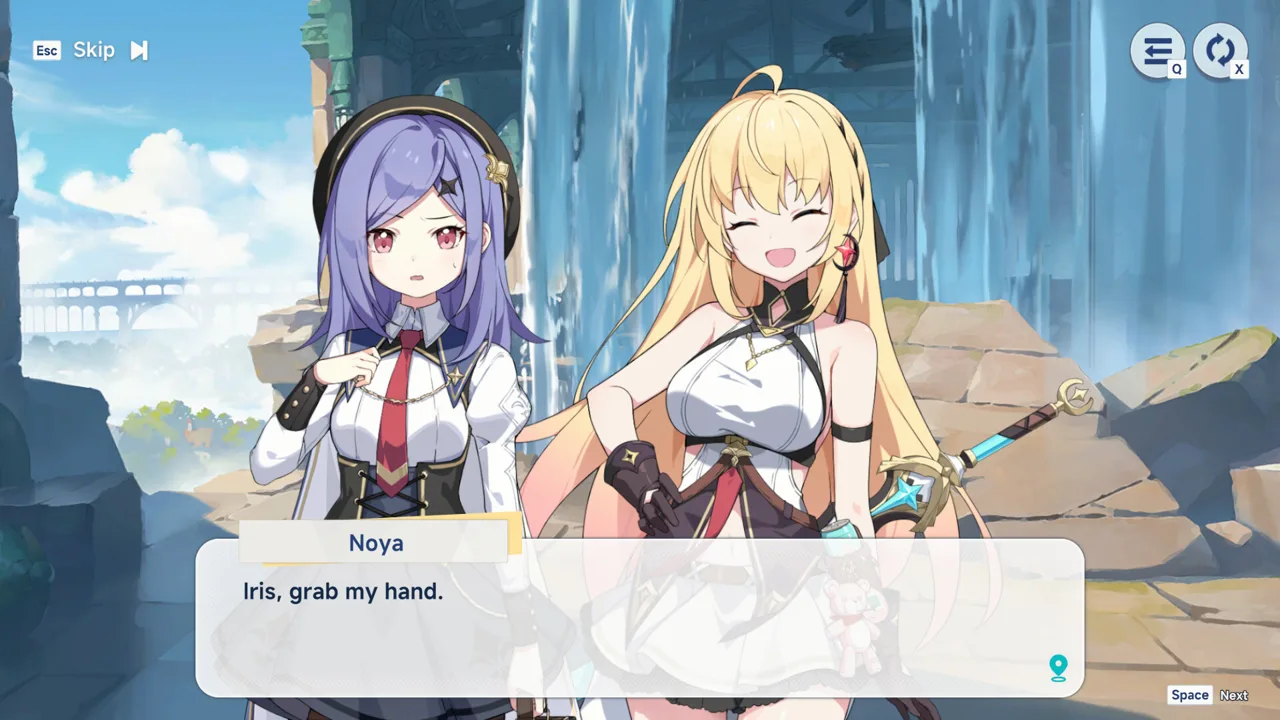 Image: Steam / YOSTAR HONG KONG LIMITED
The practical task is to identify your existing login and use it again.
| Existing login | What to check before switching |
|---|---|
| Find the email shown in User Center, then use that email to log in | |
| Check the linked third-party account and select Google login | |
| Apple | Check the linked third-party account and select Apple login |
| Guest | Link the account to email, Google, or Apple before moving |
| Steam | Bind an email address to access the account on other platforms |
Check your linked email or third-party account
On the device where your progress is available:
- Open the main-screen Menu.
- Select Settings → Account → User Center → Go.
- Check the displayed email or linked third-party account.
- Use the corresponding login option on your other installation.
For email users, the email shown in User Center identifies the account attached to that game data. For Google or Apple users, the account displayed at the top identifies the linked third-party account.
Select the matching Google or Apple button when using that login method on Steam.
Bind a guest account before moving
If you play as a guest, open User Center on your current device and link your account to email, Google, or Apple. Then use that linked method on the other platform.
Do this while you still have access to the guest account. It gives you a supported login to use when moving between installations.
Bring a Steam-created account to Android
Steam account login works within the Steam version. The Google Play, iOS, and standalone PC client versions use email, Google, Apple, or guest login instead.
To continue a Steam-created account elsewhere:
- Open Menu → Settings → Account → User Center → Go.
- Select Bind Email.
- Link an email address to the game account.
- On the other platform, log in with that email and its verification code.
For Stella Sora Mac players using BlueStacks Air, this email link connects a Steam-created account to a login supported by the Android version.
Fix a fresh account on Steam
If Steam opens a new account instead of your existing progress, check the login method you selected. Return to your usual device, inspect User Center, and use the method linked to your original game data.
Global server accounts synchronize across the supported Global versions. JP, KR, CN, and TW server accounts cannot log into Stella Sora Global on Steam.
For account assistance, use Support → Contact Us on the login screen, or Menu → Support → Contact Us from the main screen.
What to Expect Once You Start Playing
Once your Stella Sora Mac installation and account login are ready, the Android version gives you the same game content, events, and updates shared across platforms.
Stella Sora is a free-to-play light-action fantasy RPG set on Nova. You play as the Tyrant, also called the Boss, and travel with Trekkers while exploring the continent’s mysteries.
Build your squad for Monolith expeditions
Combat uses a top-down perspective and a squad of Trekkers. Monoliths are mysterious labyrinths where you challenge your team and develop its potential.
Refine your squad composition before tackling difficult bosses and events. Those challenges put both team building and execution to work, with leaderboards adding a competitive goal.
Keep that distinction in mind when planning a session: story exploration, squad development, and difficult encounters offer different things to focus on.
Spend time with your Trekkers
Heartlink lets you chat with Trekkers, go on dates, and give gifts. Increasing affinity opens their private side stories, giving you another reason to spend time with characters beyond combat.
Read story choices carefully. Branching decisions influence the narrative and can affect the world’s ending.
Between Monolith expeditions, try the casual minigames for a change of pace and additional rewards. Check the in-game announcements for current events, or visit the Stella Sora official website for game news before choosing your next activity.
FAQ
Is there a native Stella Sora Mac version on Steam?
No. The Steam edition supports Windows, with macOS and Linux support disabled. The Mac route covered here uses BlueStacks Air to run the Android version.
How do I install Stella Sora on a Mac?
Install BlueStacks Air using its Mac package installer, launch the emulator, and sign into Google Play. Search for Stella Sora, install it, and open the game inside the emulator.
Can I keep my mobile progress when switching platforms?
Yes. A linked Global account can share game data across Android, iOS, Steam, and the PC client. Use the same supported login method, and link a guest account before switching devices.
Can I use my Steam login inside BlueStacks Air?
The Android version does not support Steam account login. Open User Center in the Steam game, bind an email address, and use that email with its verification code to access your account in the Android version.
Continue with
 Stella Sora PC Guide: Downloads, Steam, and Cross-SavePlay Stella Sora PC with the Windows launcher or Steam. Compare system requirements, link your account, and keep your progress across supported platforms.
More in Platforms
Stella Sora Download: PC, Steam, iOS & Android Guide
Find your Stella Sora download for PC, Android, and iOS. Check Steam launch status, Windows requirements, and account linking before you start playing.
Stella Sora Steam Guide: Login, Cross-Save, and Specs
Explore Stella Sora Steam with PC requirements, cross-save steps, account linking, Steam Wallet details, and fixes for missing progress before you play.
Join the community
Official channels for news, updates and player help: